Cyclonis Backup's Uninstall Instructions
Before we guide you through the uninstall process, if you have a question, you can find many answers in our FAQ and Help File. For product or technical information and questions, please visit our Support page.
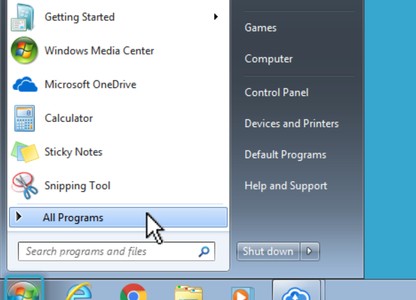 Open the Start menu.
 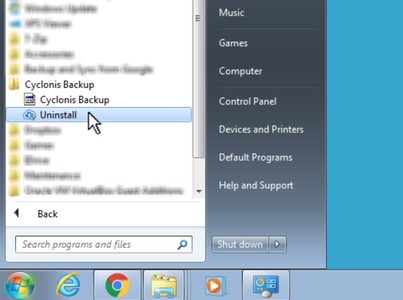 Click on the Cyclonis Backup folder and select Uninstall Cyclonis Backup.
 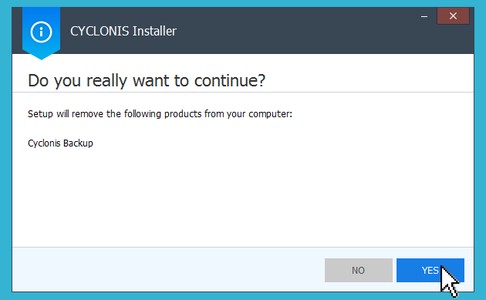 Follow the steps in the Cyclonis Uninstaller.
 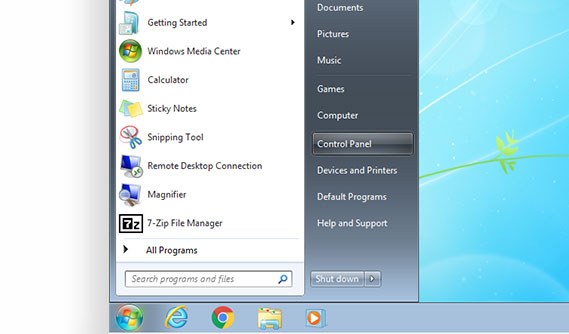 Locate and open the Control Panel.
 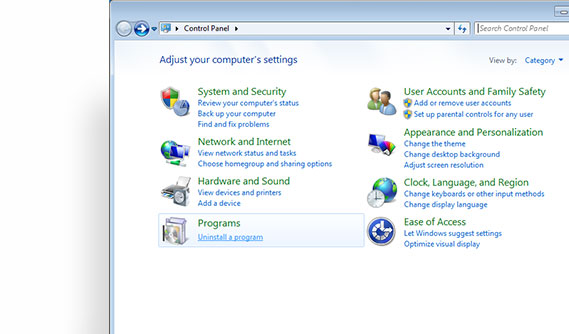 Under the Programs or Programs and Features section, locate
Uninstall a program. Click on it.
Under the Programs or Programs and Features section, locate
Uninstall a program. Click on it. 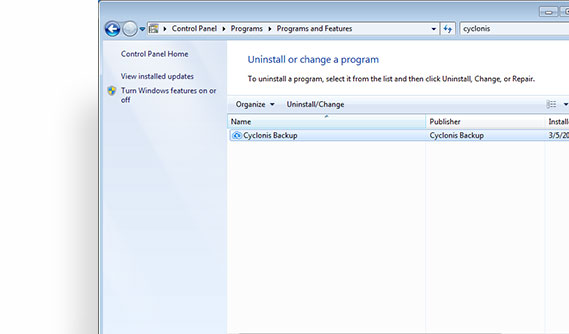 Select Cyclonis Backup from the list and click on the Uninstall button.
 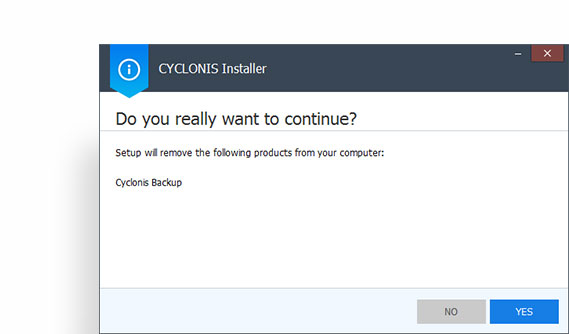 Follow the steps in the Cyclonis Uninstaller.
 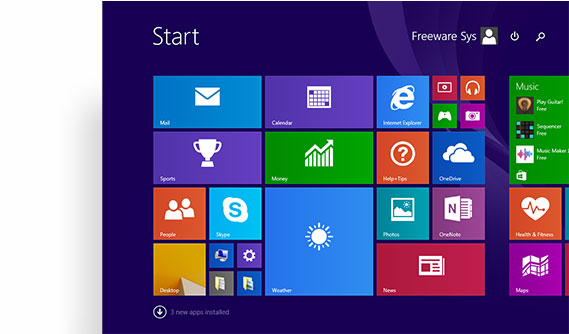 Open the Start screen.
 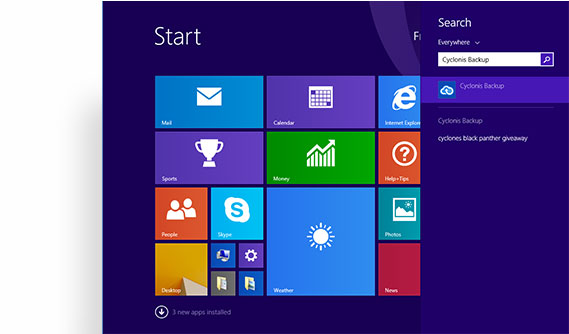 Type Cyclonis Backup.
 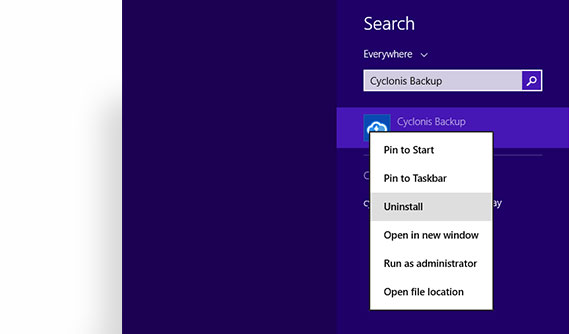 Right-click on the Cyclonis Backup icon and select Uninstall.
 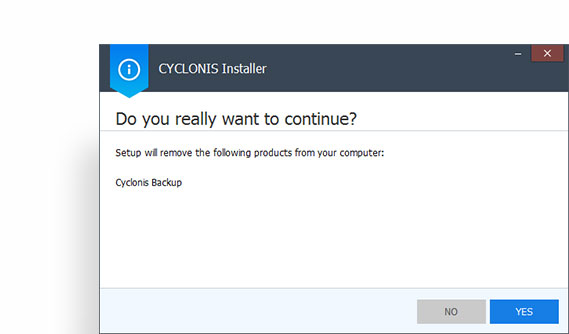 Follow the steps in the Cyclonis Uninstaller.
 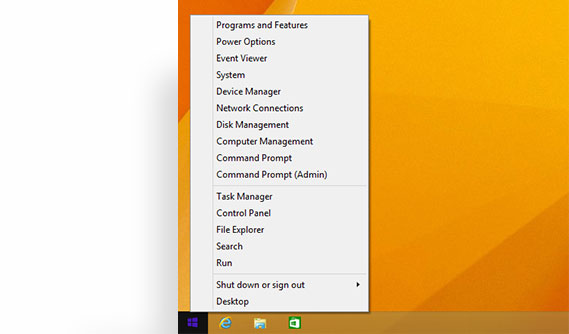 Select Control Panel.
 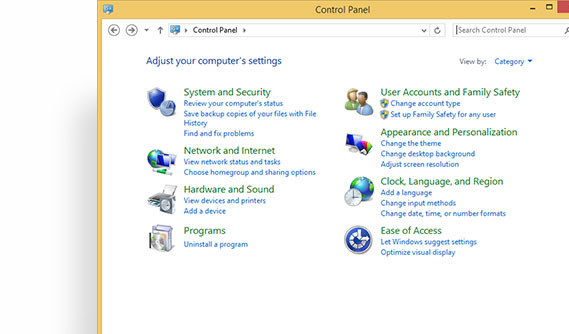 Click Programs and Features.
 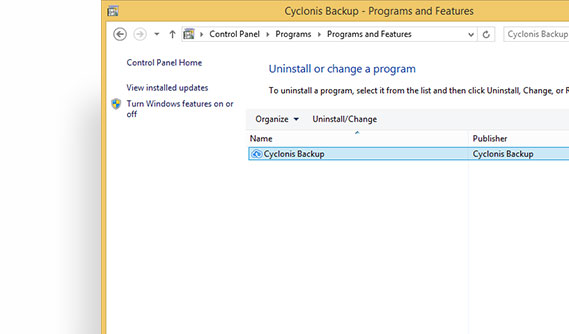 Double-click on Cyclonis Backup.
 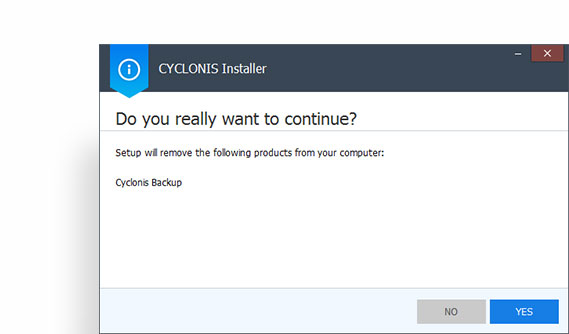 Follow the steps in the Cyclonis Uninstaller.
 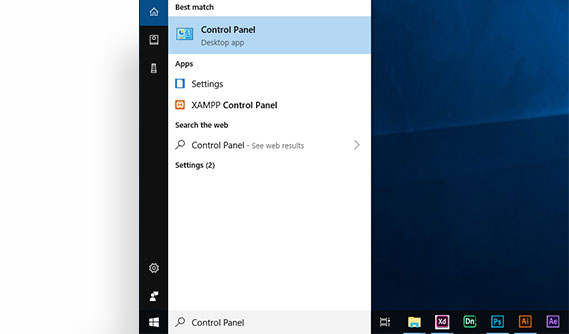 Type Control Panel and click Enter.
 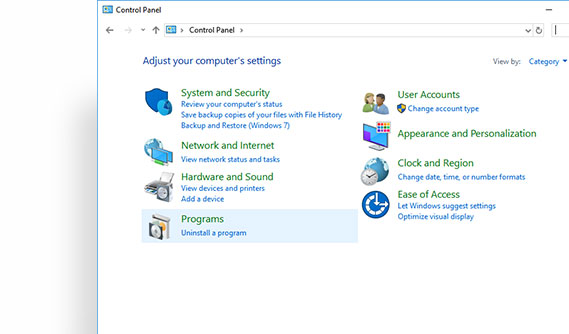 Under the Programs section, you'll see Uninstall a Program. Click on it.
 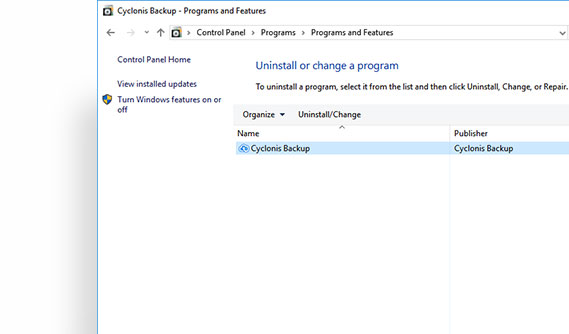 Select Cyclonis Backup from the list and click on the Uninstall button.
 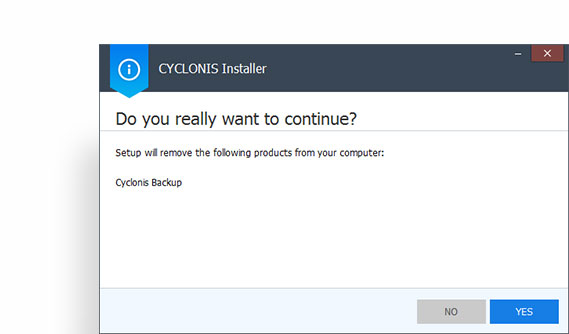 Follow the steps in the Cyclonis Uninstaller.
 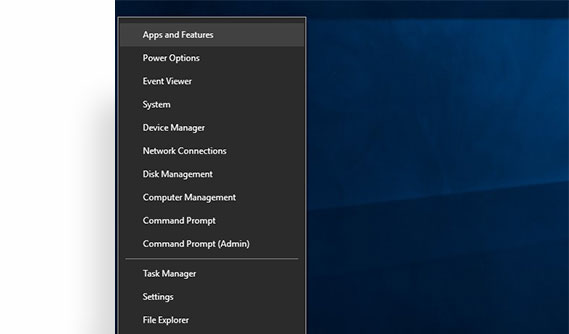 Choose Apps and Features.
 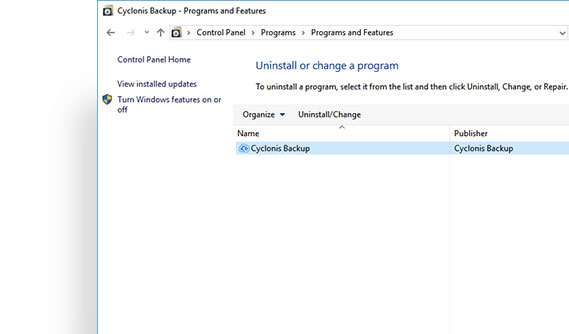 Find Cyclonis Backup on the list and click on the Uninstall button.
 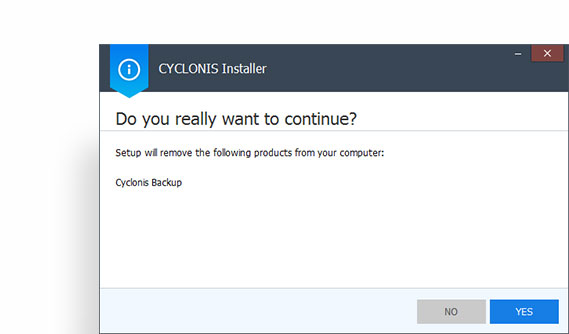 Follow the steps in the Cyclonis Uninstaller.
 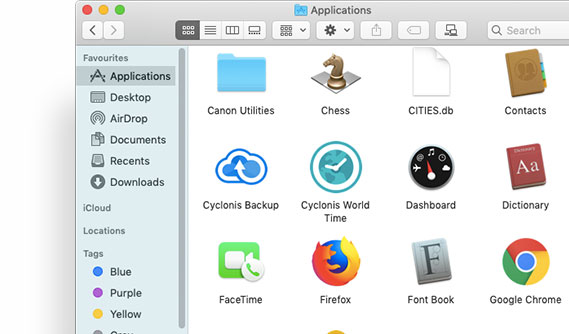 Open a Finder window and choose Applications from the sidebar.
 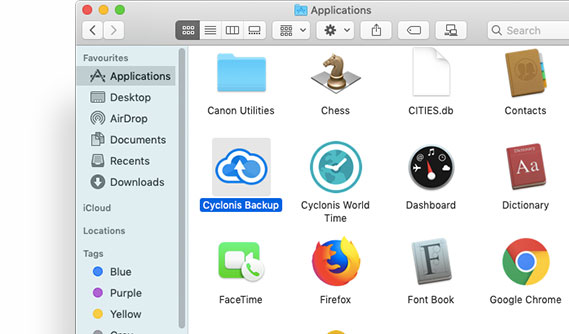 Locate Cyclonis Backup.
 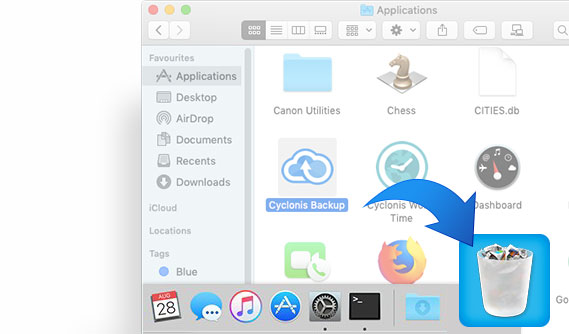 Drag the Cyclonis Backup application to the Trash
(located in the Dock). If you change your mind, you can restore the
Cyclonis Backup application using the File > Put Back
function. For permanent deletion, you can simply empty the trash.
Drag the Cyclonis Backup application to the Trash
(located in the Dock). If you change your mind, you can restore the
Cyclonis Backup application using the File > Put Back
function. For permanent deletion, you can simply empty the trash.